
You have finished the report, the contract, or the proposal. The PDF looks done. But before you hit send, it is worth spending five minutes checking what is actually inside the file. PDFs have a habit of carrying things you did not mean to share: an old company name from a reused template, a client's phone number buried on page nine, a blank page left over from a scan, or no protection at all on a document that should not be forwarded freely.
Here is a simple pre-send checklist you can run through every time. It takes minutes, and it saves the kind of embarrassment that no apology email can undo.
1. Fix outdated text and dates
Reused templates are the most common source of stale information in a PDF. A proposal built from last quarter's version still says the old price. A contract still carries the previous client's name in a footer. A report still shows last year's date on the cover page.
Do not hunt for these by scrolling. Use find and replace to search the whole document for the old wording and swap in the new version in one pass. With All About PDF, you can run find and replace across a single file or a whole folder of files at once, so if the same outdated term appears in ten documents, you fix all ten in one go. Wildcard support helps too: if dates or reference numbers follow a pattern, you can match the pattern rather than typing out every variation.
Before you move on, search for the obvious suspects: old years, old prices, old names, and placeholder text like "Lorem ipsum" or "TBD" that somehow survived to the final version.
2. Remove sensitive information properly
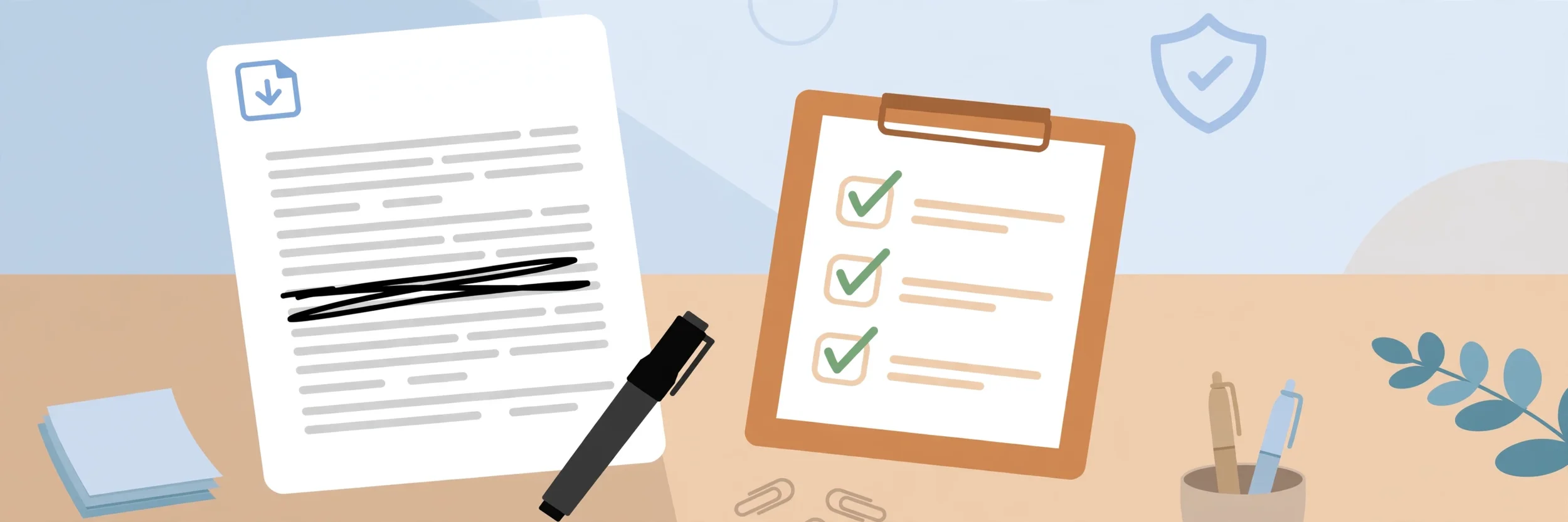
This is the step people get wrong most often. Drawing a black rectangle over a credit card number or an email address does not remove it. The text is still sitting underneath, and anyone who copies the page or opens the file in another viewer can read it.
Real redaction removes the text from the document entirely. That is the difference between covering something up and actually taking it out. When you redact with All About PDF, the sensitive text is gone for good, not hidden behind a box.
Run a find-and-replace style search for the things that should never leave your office: account numbers, personal phone numbers, internal email addresses, and salary or pricing details meant for one recipient only. Check every page, including headers, footers, and appendices, where stray details love to hide. If you are sending a batch of similar files, you can redact the same terms across all of them at once rather than opening each file separately.
3. Cut the blank pages and stray pages
Nothing says "I did not check this" like a blank page in the middle of a document, or a page from a different report that got merged in by mistake. Scanned documents are the worst offenders: a scanner often adds a blank page for every blank side of a sheet, and merged files pick up cover pages and dividers nobody needs.
Before sending, remove blank pages so the document reads cleanly from start to finish. If a file contains pages that belong somewhere else, split them out into a separate file instead of leaving them in. A tidy document is easier to read, cheaper to print, and looks far more professional when it lands in a client's inbox.
4. Lock it down for the right recipient
Not every PDF needs protection, but the ones that do should get it before they leave your computer, not after. Ask yourself two questions: who should be able to open this, and what should they be able to do with it?
If the answer is "only this person," add a password so the file cannot be opened by anyone else. If the document should be read but not copied, printed, or edited, set permission controls to match. And if the information has a shelf life, such as a quote that expires in 30 days or a draft that should not circulate after a meeting, set an expiry date so the file stops opening once its time is up.
All About PDF handles all three: password protection, DRM permission controls, and document expiry dates. Set them once, and the protection travels with the file wherever it goes.
5. Keep the whole job private
One last point, and it is easy to overlook: the tools you use to clean up a PDF matter as much as the cleanup itself. Uploading a sensitive document to a random free website to fix a typo or strip a page means handing a copy of that document to a server you do not control, with no guarantee of what happens to it next.
Do the cleanup on your own computer instead. All About PDF processes files locally, so your documents never leave your machine. That matters most exactly when the document contains the sensitive information you are trying to remove.
A five-minute habit worth keeping
Fix the outdated text. Redact what should not be shared. Remove the blank and stray pages. Add protection if the document needs it. And do it all locally.
Run through that checklist before every send, and the PDF that arrives in your client's inbox will be the one you meant to send: accurate, clean, and safe to share. That is a small habit, but it is the difference between a professional document and an apology.
Ready to tidy up your PDFs before they go out? Download All About PDF and try the pre-send checklist on your next document. Your future self, and your clients, will be glad you did.