
This article explains how to run a saved All-About-PDF workflow from the command line. It also shows how this can be used for unattended automation with Windows Task Scheduler or other process schedulers.
OVERVIEW
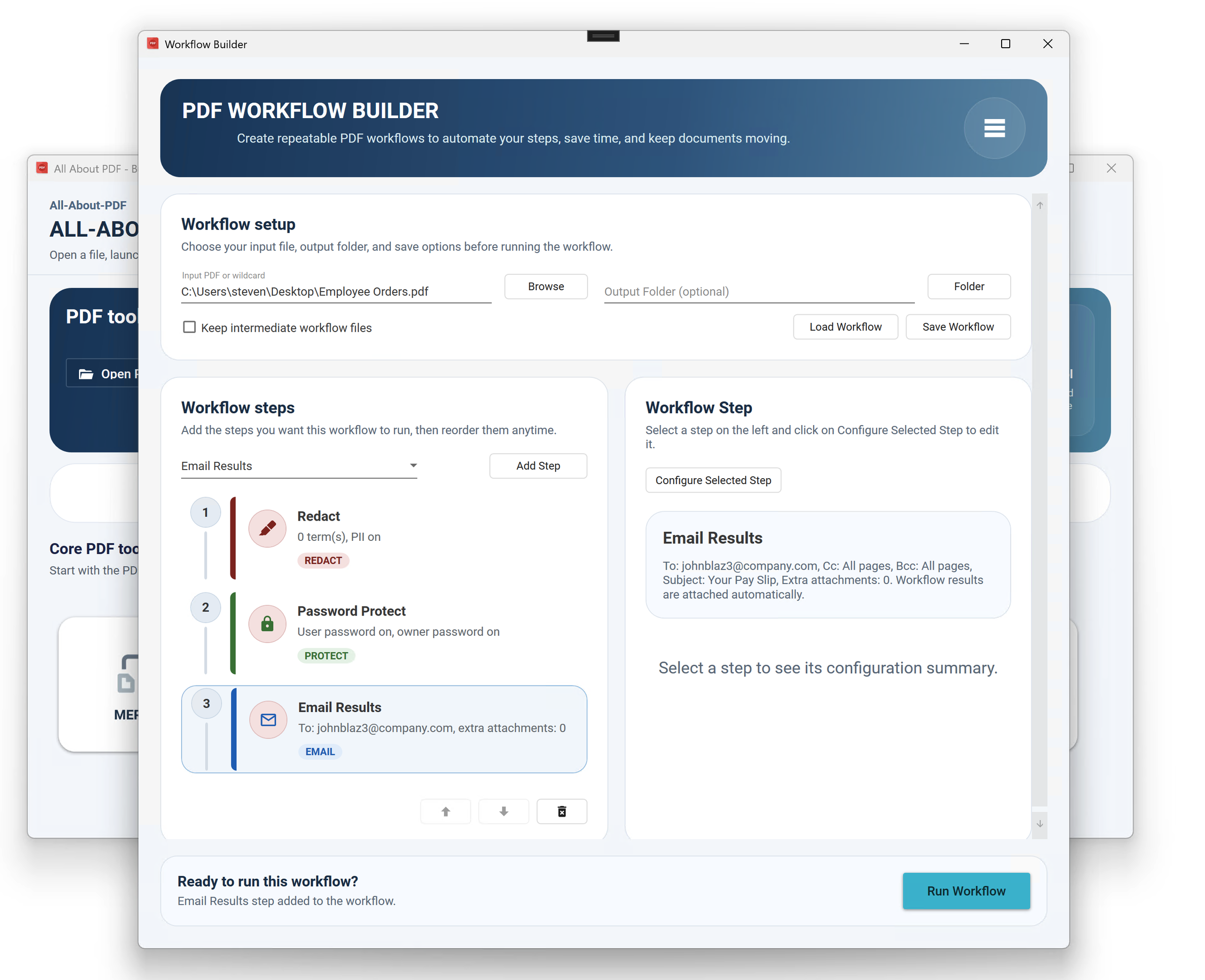
All-About-PDF workflows let you chain multiple PDF actions into a single repeatable process. After a workflow is saved to a JSON file, it can be executed from the command line without opening and configuring each tool manually.
This is useful for scenarios such as:
Securing PDF files before distribution
Splitting a PDF into multiple output files
Emailing processed results automatically
Running the same document process on a schedule
Processing multiple matching files with a wildcard
Command syntax
Use the following command:
All-About-PDF.exe /workflow "C:\Workflows\secure-split-email.json"
Parameters
/workflow
Runs a saved workflow JSON file.
"path to workflow json"
The full path to the workflow definition file.
Example scenario
A common business scenario is to take an incoming PDF and:
apply password protection
split it into separate files
email the final results automatically
This is useful for reports, statements, legal packets, onboarding documents, and other files that need security and distribution.
Example workflow JSON
The following example shows a workflow that protects a PDF, splits it, and emails the final output files.
{
  "InputFile": "C:\\Docs\\MonthlyReports\\Report.pdf",
  "OutputFolder": "C:\\Docs\\MonthlyReports\\Processed",
  "KeepIntermediateFiles": false,
  "Steps": [
    {
      "StepType": 2,
      "UserPassword": "Open123!",
      "OwnerPassword": "Owner123!",
      "CanPrint": true,
      "CanCopy": false,
      "CanFill": false,
      "CanModifyContent": false,
      "CanModifyAnnotations": false,
      "CanScreenReaders": true
    },
    {
      "StepType": 4,
      "SplitByPageRange": true,
      "SplitByNthPage": false,
      "SplitByPattern": false,
      "SplitPageRanges": "1-2,3-4,5-6",
      "SplitSaveFileName": "statement"
    },
    {
      "StepType": 6,
      "EmailTo": "ops@company.com",
      "EmailCc": "",
      "EmailBcc": "",
      "EmailSubject": "Processed Monthly Reports",
      "EmailMessage": "Attached are the secured and split PDF files for distribution."
    }
  ]
}
Workflow step types
The workflow engine currently supports these step types:
0 = Redact
1 = FindReplace
2 = Protect
3 = Watermark
4 = Split
5 = Expiry
6 = Email
7 = Drm
Wildcard input support
Workflows can process multiple files by using a wildcard in InputFile.
Example:
{
  "InputFile": "C:\\Docs\\Incoming\\*.pdf",
  "OutputFolder": "C:\\Docs\\Outgoing",
  "KeepIntermediateFiles": false,
  "Steps": [
    {
      "StepType": 2,
      "UserPassword": "Secure123!",
      "OwnerPassword": "Owner123!"
    },
    {
      "StepType": 6,
      "EmailTo": "team@company.com",
      "EmailSubject": "Processed PDFs",
      "EmailMessage": "Attached are the processed PDF files."
    }
  ]
}
This allows the workflow to run against every matching PDF in the folder.
Common automation use cases
Command-line workflows are a good fit for:
nightly PDF processing
scheduled report handling
automated secure delivery
batch document splitting
post-processing after another system exports PDFs
Examples include:
protecting statements before sending them
splitting a combined report into separate files
watermarking or expiring sensitive documents
emailing finished outputs to a mailbox or team
Automating with Windows Task Scheduler
You can automate workflow execution by using Windows Task Scheduler.
Basic approach
Open Task Scheduler.
Create a new task.
Set the trigger you want:
daily
weekly
at logon
on a specific event
4. Set the action to Start a program.
5. Browse to All-About-PDF.exe.
6. In Add arguments, enter:
/workflow "C:\Workflows\secure-split-email.json"
7. Save the task.
Once configured, Windows can run the workflow automatically on the chosen schedule.
Automating with other schedulers
You can also run workflows from other scheduling or orchestration tools, including:
enterprise job schedulers
RPA platforms
PowerShell scripts
batch files
CI/CD or backend automation tools
As long as the scheduler can launch an executable with arguments, it can run an All-About-PDF workflow.
Notes
Relative paths inside the workflow JSON are resolved relative to the JSON file location.
Email workflow steps attach the final workflow results automatically.
DRM steps are intended to be terminal steps because they produce PDFe output.
If a Find/Replace step finds no matches, the workflow continues by using the original input file.
Summary
Running workflows from the command line makes All-About-PDF suitable for unattended and repeatable document automation.
This approach is especially useful when you need to combine PDF security, splitting, and email delivery into a scheduled or system-driven process. With Windows Task Scheduler or another process scheduler, the same workflow can be executed automatically whenever it is needed.