
If your Windows computer has started running slower than usual, freezing during updates, or warning you about low storage, your PDF files may be part of the problem.
Professionals who work heavily with PDFs e.g. contracts, invoices, scanned records, compliance archives, reports, often accumulate tens or hundreds of gigabytes without realizing it.
Here’s the critical performance rule:
Windows PCs begin to noticeably slow down once available storage drops below 20%.
When free disk space falls under that threshold, Windows struggles to operate efficiently because it needs room for:
Virtual memory (page file)
Temporary files
Windows updates
Application caches
System restore points
If your drive is crowded with oversized or duplicate PDFs, performance degradation and compliance risks can follow.
Let’s break down why this happens and how to fix it properly.
How PDFs Quietly Fill Up Your Disk
PDFs can be extremely efficient, or extremely large.
Here are the most common reasons they consume so much storage:
1. High-Resolution Scans (300–600 DPI)
Many scanners default to 600 DPI in full color. A 200-page scanned document at that resolution can exceed 300MB. Multiply that across years of archives, and storage fills quickly.
2. Image-Based PDFs Instead of Text-Based PDFs
When documents are scanned as images rather than converted to optimized text PDFs, every page becomes a large embedded image. Text-based PDFs are dramatically smaller and more searchable.
3. OCR Layers and Incremental Saves
OCR improves searchability and compliance indexing. However:
Poorly optimized OCR increases file size
Repeated incremental saves can cause file bloat
Embedded unused objects remain inside the file
4. Duplicate Versions
Common duplication patterns:
Desktop copy
Downloads copy
Email attachment copy
Shared drive version
“Final_v2_FINAL_signed.pdf”
Over time, duplicates silently multiply storage usage.
Why Low Disk Space Slows Down Windows
Once your system drops below 20% free space:
Windows updates may fail
Applications launch slower
SSD performance degrades
Temporary file operations slow down
Backup processes can fail
Modern SSDs require free blocks to maintain performance and longevity. A nearly full SSD does not behave like a healthy one. For businesses, this can mean workflow interruptions and compliance exposure.
5 Ways to Reduce PDF Storage and Improve Performance
1. Identify Oversized PDF Files
In File Explorer, search:
size:>50MBThis immediately reveals large documents that may need optimization. But manual searching only goes so far.
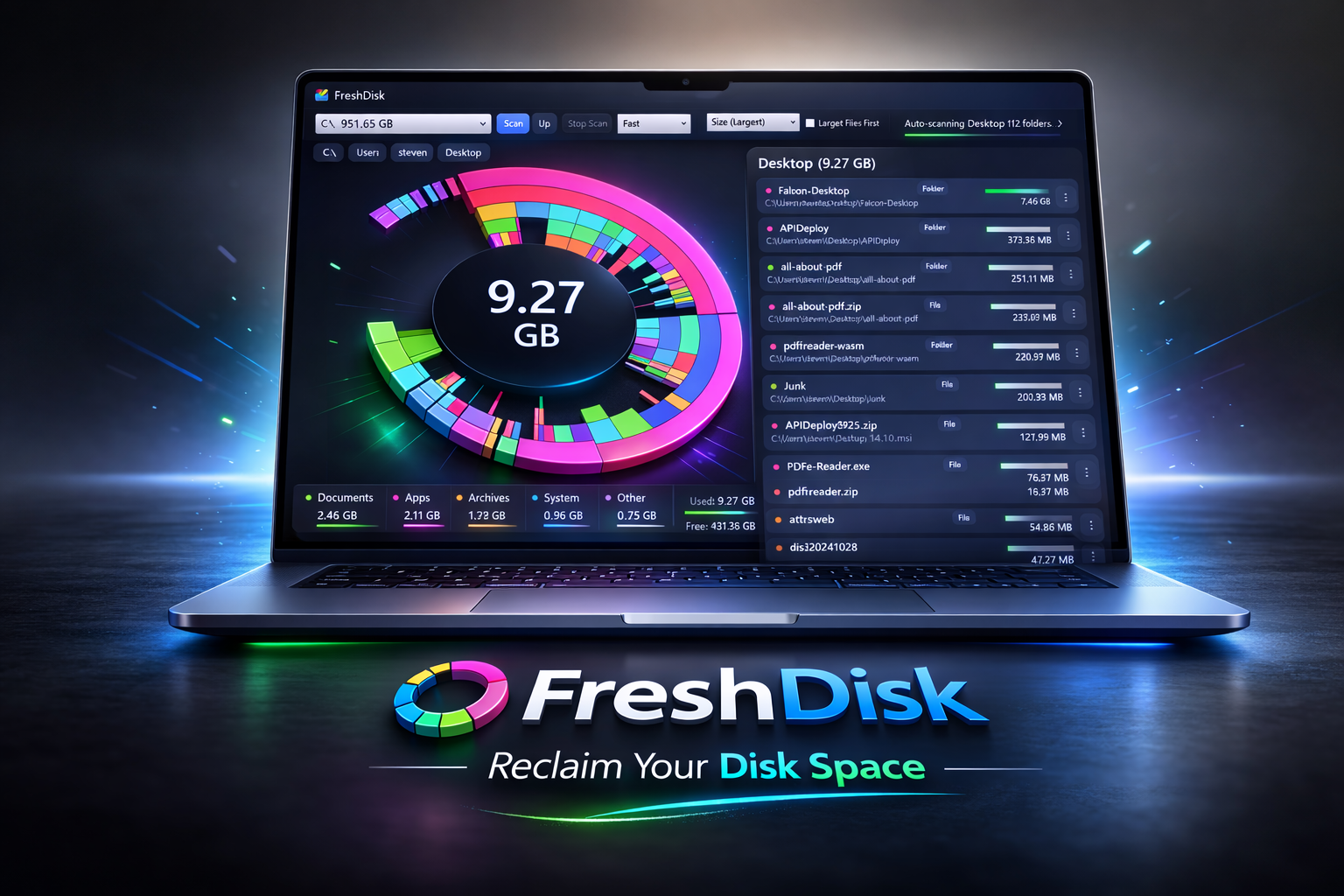
2. Use FreshDisk to Locate PDF Storage Clusters
When you work with thousands of documents, the real issue is not just large files—it’s large folders full of PDFs.
https://freshdisk.lovable.app/
helps you:
Visualize which folders consume the most space
Identify clusters of oversized PDF archives
Quickly spot duplicate-heavy directories
See whether your C drive is approaching the 20% danger zone
Instead of guessing where your storage went, you get a visual breakdown of exactly which directories are consuming space.
From there, you can:
Compress large PDFs
Remove duplicates
Archive historical records properly
Apply retention policies strategically
FreshDisk is not a deletion tool. It’s a discovery and visibility tool, which makes it useful in compliance-driven environments where blind deletion is not acceptable. With its AI smarts, it can also guide you into deleting the non-critical files on your computer.
3. Compress and Optimize Large PDFs
Proper PDF optimization can reduce file size by 50–90% without harming readability.
Best practices:
Reduce excessive scan resolution (e.g., 600 DPI → 300 DPI)
Use All-About-PDF to batch compress PDF files
Convert unnecessary color scans to grayscale
Remove unused embedded fonts
Flatten unnecessary layers
Re-save to eliminate incremental save bloat
Optimization improves both storage efficiency and document handling speed.
4. Convert Image-Only PDFs to Optimized Text PDFs
If documents were scanned as images only:
Apply OCR correctly
Save using optimized compression settings
Ensure text replaces redundant image data where possible
This improves:
File size
Searchability
Legal discovery readiness
Regulatory indexing compliance
5. Implement Retention and Secure Deletion Policies
Before deleting files to free space, ensure:
Retention requirements are satisfied
Sensitive data is properly redacted
Secure deletion is applied when required
Archived files are stored in controlled locations
Use FreshDisk AI to check if a file is safe to delete
Performance improvements should never compromise compliance.
Performance and Compliance Go Hand in Hand
Storage management is not just an IT concern.
It affects:
System reliability
Update success
Backup integrity
Audit readiness
Data governance
Uncontrolled PDF growth increases both performance strain and regulatory risk. Maintaining at least 20–25% free disk space while keeping documents optimized and organized protects both your system and your compliance posture.
Final Thoughts
PDFs are essential for modern business. But unmanaged PDF storage can:
Slow down your Windows PC
Disrupt updates
Increase storage costs
Create compliance exposure
By identifying large PDF clusters, optimizing files properly, removing duplicates, and maintaining healthy free space levels, you protect both operational performance and regulatory integrity.
Disk space management is not just about capacity.
It is about control.