
Discover the future of PDFs with the latest innovations and trends transforming digital documents. From AI-driven content extraction and mobile-first design to multimedia integration and advanced security measures, learn how PDFs are evolving to meet the demands of today's digital world. Stay ahead of the curve and make your PDFs more powerful, versatile, and secure.
Top Skills To Master To Become a PDF Black Belt
In today's digital age, the mastery of PDFs goes far beyond simply viewing or printing documents. PDFs have become ubiquitous for sharing, storing, and collaborating on information across various industries and professions. To harness the power of PDFs and become a true "PDF Black Belt," one must acquire a diverse skill set that goes beyond the basics. In this blog post, we'll explore the top skills essential for anyone looking to navigate the world of PDFs with finesse and precision. From advanced editing and security techniques to efficient organization and automation tricks, these skills will empower you to work with PDFs more effectively and unlock their full potential to streamline your professional and personal tasks. So, let's embark on a journey to PDF mastery and discover the skills that will make you a true PDF expert.

Merge PDF Documents
Merging PDF files is an invaluable capability that simplifies the management and distribution of digital documents. This functionality streamlines the process of combining multiple PDFs into a single, cohesive file, making it easier to organize and present information. Whether you're a professional compiling a comprehensive report, a student assembling research papers, or simply looking to merge various receipts or invoices, the ability to merge PDFs enhances efficiency and organization. It reduces clutter, eliminates the need for multiple attachments or downloads, and ensures that all relevant content is conveniently accessible in one document. Furthermore, merging PDFs preserves the original formatting and layout, ensuring that the integrity of the information remains intact. In an increasingly digital world, the convenience and practicality of merging PDF files are indispensable for anyone dealing with document management and distribution.
Split PDF Documents
Being able to split a PDF is a highly valuable function that offers flexibility and precision in managing digital documents. This capability allows users to divide a large PDF file into smaller, more manageable segments, tailoring the content to specific needs. Whether you're extracting individual chapters from an e-book, isolating specific pages for reference, or separating confidential information from a larger document, PDF splitting simplifies the task. It also aids in reducing file size for easier sharing and faster loading times, particularly when dealing with email attachments or online uploads. Moreover, PDF splitting maintains the original document's formatting and quality, ensuring that the divided segments retain their visual and textual integrity. This versatile feature enhances productivity, simplifies document organization, and empowers users to extract and manipulate PDF content precisely, making it a crucial tool for many professional and personal tasks.
Watermark PDF documents
Watermarking PDF files is a crucial practice with multifaceted benefits. It acts as a digital signature, indicating a document's source, status, or ownership, bolstering its credibility and authenticity. This is particularly valuable for businesses, content creators, and legal professionals who need to protect their intellectual property or establish the validity of documents. Watermarking also enhances security by deterring unauthorized distribution and plagiarism, as the presence of a watermark reminds recipients of the document's confidential or sensitive nature. Furthermore, watermarking can be used for branding purposes, reinforcing an organization's identity by adding logos or trademarks to documents. In summary, watermarking PDF files combines elements of security, authenticity, and branding, making it a versatile tool with applications in various domains where document integrity and identity are of utmost importance.
Redact Documents
The ability to redact PDF documents is indispensable in safeguarding sensitive information and ensuring privacy in the digital age. Redaction involves the selective removal or obscuring of specific content, such as personal data, confidential details, or privileged information, from a PDF file. This process is vital for individuals and organizations seeking to share documents while protecting sensitive data, complying with privacy regulations, or maintaining legal confidentiality. By redacting sensitive information, PDFs can be securely shared without compromising privacy or confidentiality. This capability is especially crucial in sectors like law, healthcare, finance, and government, where strict privacy and compliance standards are upheld. Redaction not only safeguards sensitive data but also preserves the overall integrity and usability of the document, making it an essential tool for responsible and secure digital document management.
PROTECT AND SECURE YOUR PDF FILES
The ability to secure PDF files with both a password and Digital Rights Management (DRM) is paramount for safeguarding valuable content in today's digital landscape. Password protection adds an initial layer of defense by limiting access to authorized users who possess the correct password, ensuring that confidential documents remain protected from unauthorized access. On the other hand, DRM goes a step further by granting content owners the ability to control and restrict what recipients can do with the PDF file, including preventing copying, printing, or sharing. This comprehensive approach to security ensures that sensitive information, proprietary content, or intellectual property remains under tight control, safeguarding against piracy, unauthorized distribution, and data breaches. Combining password protection and DRM fortifies PDF files against many potential threats, making it a critical solution for businesses, content creators, and organizations prioritizing document security and digital asset protection.
Chat with Your PDF
The capacity to summarize PDFs using AI technology represents a transformative advancement in information management and comprehension. AI-powered PDF summarization can distill large volumes of text into concise, coherent, and easily digestible summaries. This capability is invaluable in today's data-rich world, where individuals and organizations grapple with information overload. AI-driven summarization not only saves time but also enhances decision-making by providing quick insights into the key points and essential details within complex documents. It aids in efficiently extracting relevant information from lengthy reports, research papers, legal documents, and more. Furthermore, it democratizes access to information by making it more accessible to individuals with varying levels of expertise. AI-driven PDF summarization thus empowers users to navigate the ever-expanding sea of data, facilitating better-informed decisions, improved research and enhanced productivity across diverse fields and sectors.
Convert PDF to other formats
The ability to convert PDF documents into other formats, such as Microsoft Word or Excel, is an essential tool for enhancing document versatility and accessibility. PDFs are a universal format known for preserving content integrity and layout, but they can be challenging to edit or extract data from. Converting PDFs to Word or Excel formats simplifies the process of editing, repurposing, and analyzing the information contained within these documents. This functionality is particularly valuable for professionals and researchers who need to work with the content in a more dynamic manner. It saves time by eliminating the need to manually retype data and allows for easy integration of PDF content into reports, presentations, or databases. Whether for updating contracts, extracting tables for analysis, or repurposing research findings, the ability to convert PDFs empowers users to make the most of their digital documents, enhancing productivity and efficiency in various fields and industries.

In conclusion, mastering the art of PDF management is not just a luxury but a necessity in today's fast-paced digital world. From editing and annotation to encryption and batch processing, having the right set of skills will make you a PDF black belt, capable of handling any challenge that comes your way. All-About-PDF offers an all-in-one solution that encompasses all the top skills we've discussed. With its user-friendly interface, robust features, and advanced capabilities, it empowers you to manage PDFs like a pro. So why settle for less when you can have the best? Equip yourself with our cutting-edge software and take the first step toward becoming a PDF master today!
Guest Post: Unleash Your Productivity: Introducing Aiden - Your AI Assistant for iPhone and iPad
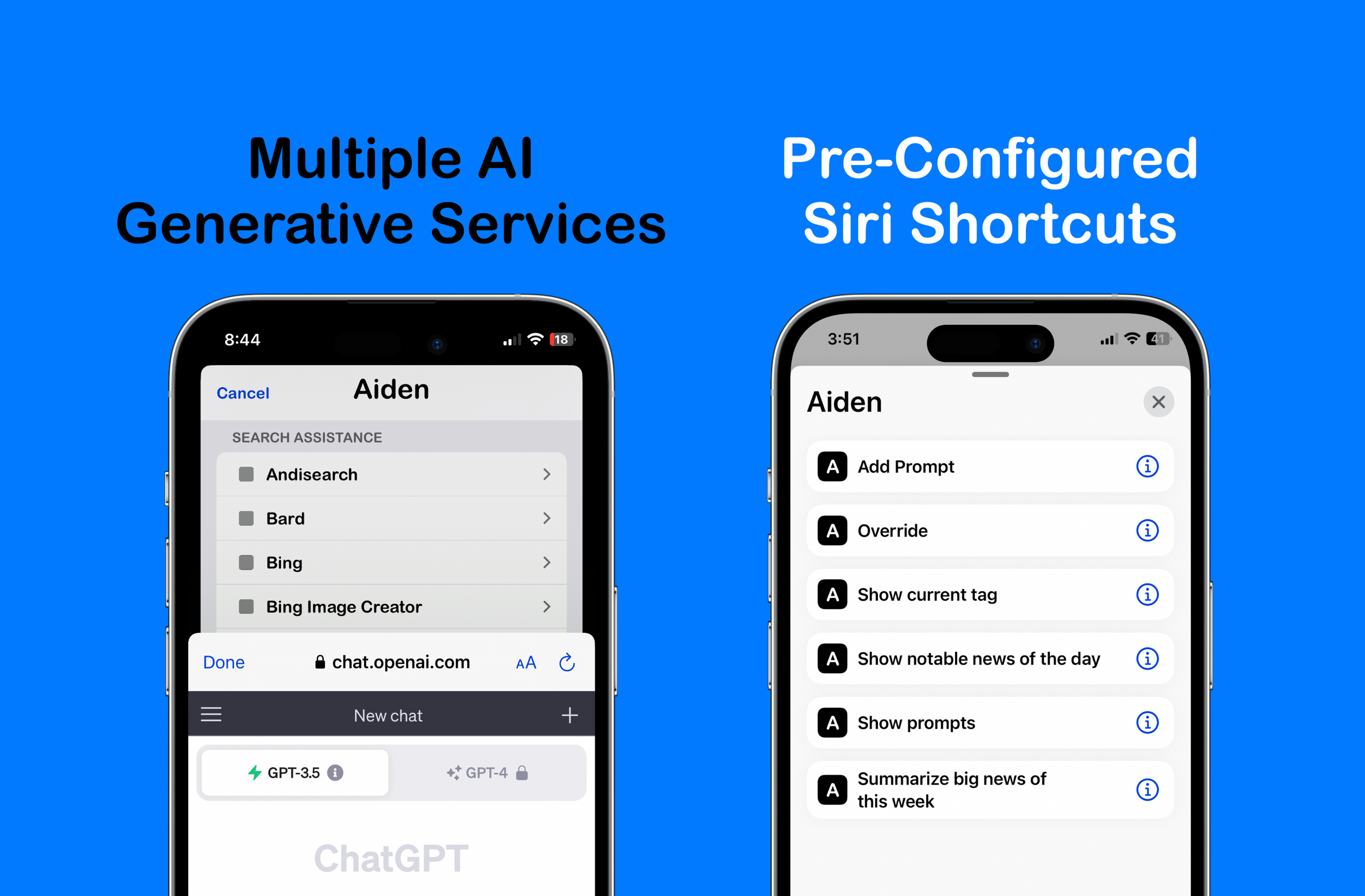
Step into the future of technology with Aiden, an app for iPhone and iPad focused on Artificial Intelligence (AI). This app is an alternative to existing solutions but with a robust, reimagined twist. It offers access to several generative AI services (ChatGPT, Andisearch, Bard, Llama, Bing Image Creator, DALL.E, Perplexity, MusicLM, etc.*). It supports multiple Search Engines, Safari Extensions, a Share Extension, Custom Prompts, Siri Shortcuts and is integrated with the Opener and iCabMobile apps. When it comes to privacy and security, Aiden does not track users and will also work with your device on a Virtual Private Network. Download it here for a one-time fee of $1.99 (no subscriptions), and stand out by unleashing AI-driven, game changing productivity and possibilities today.
Onboarding with Aiden: Navigating the AI Assistant
When you open the app for the first time, there is an intro screen. It pops up automatically once, and if you need to reference it again, you will have to summon it from the Extras section. The Extras section of the app can be accessed by double clicking the developer’s name on the main page or shaking your device while on the main page. Things get interesting in the Extras section, honestly!
As an AI assistant, Aiden will on occasion require access to the clipboard to process user- initiated requests, so it’s recommended to allow ‘Paste from Other Apps’ in the settings app of device as one of the first things you do after downloading it.
The center image on the main screen offers some gestures:
Swipe right - DALL.E
Swipe left - Bing Image Creator
Swipe up - Phind
Swipe down - Override functionality
Double tap - Custom Prompts Section
Long press - Multiple Search Options
Use cases for these gestures will vary. Think creation of images for blogs, logos for businesses, flexing your meme muscle, accessing URLs of your choice or just working on your prompt engineering skills. Something will resonate with your passion.
Safari Extensions and Beyond: Aiden's Deep Integration
Aiden contains Safari extensions to customize your browsing experience and the Extras section of the app shows how to turn them on. To utilize them simply click on the extension name when on a webpage. One extension copies the URL to clipboard and runs a Shortcut. What the shortcut does is up to you. Another extension copies the text of an article to your clipboard and opens the Aiden application. Another summarizes the contents of a web page.
The .Intelligence extension once turned on adds multiples search engines to Safari and works in a similar manner to Apple’s text replacement feature in some cases.
Usage of engines in Safari browser or via device search feature: ‘pe What are the legal requirements for creating a will?’

Crafting Your Interactions: Mastering Aiden's Extras Section
Once you open this section scroll to the bottom, the ‘Default Page’ area. Every row in this area is like a module. Select any of the modules listed and this becomes your landing page when you open the app or bring main page into view from the background. This means you could turn Aiden into a Bard iOS app of sort (or iPadOS app) or MusicLM app, etc. Override allows you to add a service of your choice and viola, that becomes your landing page. You could try old Reddit, NotebookLM, Wordle, Claude or Dezgo, etc. It could be anything really, as long as it’s a valid URL. The Aiden module combines all the listed modules onto a single view and that becomes your landing page. The Prompts module was included because input to generative AI services matters, can’t stress that enough. Good prompts are what will help you to be productive. Experiencing things like making AI music (MusicLM) on your device and getting instant feedback through your over the ears headphones or having complex topics explained in lay terms from an experts’ point of view is just pure gold, metaphorically.
Harnessing the Power of Prompts: A Key to Productivity

The output from large language models is contingent on your query, also known as a prompt. People have created businesses around how to prompt and others just share their finds which means there is a ton of them out there. The Prompts module (section) of the app offers a central location to keep and use prompts. The prompt(s) you save can either be in URL format, text, or a combo (Aiden moonlights as a bookmarking or note taking app, very well too). Use cases besides URL bookmarking include saving code snippets or recipes. Prompts can be added using the Share Extension, via a 3D quick action or through the ‘Add Prompt’ Siri Shortcut. The addition of these prompts happens on the Prompts page. The Share Extension copies the URL of a webpage to the clipboard and brings it into the Aiden app. With that understanding you can easily update the ‘Add Prompt’ Siri Shortcut to become an action extension.
When you click on a prompt row the Override module website is opened only if the underlying description of the prompt is just text. Try it. Swiping a prompt row right allows you to preview and/or copy its description. If you have the Opener app installed on your device then swiping right will present you with options on how to handle valid URLs. Swiping left allows you to edit or delete a prompt. Long pressing a row will copy the prompt description to your clipboard and offer you options of areas in which the copied text can be used. These prompt descriptions that you save and access are ‘Custom Instructions’ that you can use with multiple generative AI services, not just ChatGPT.
Prompts are saved on your device only. There is a backup button on the Prompts page that allows you to move your prompts file to a location of your choice (locally or remotely with personal configuration). This gives you control of your data. The Extras section of the app provides functionality to export, delete or restore your backups. The prompt file between iPad and iPhone does not sync because what you do on either device is different but you could do it manually.
AI in Action: Shortcuts, Chatting with PDFs and More
When on the Add or Edit Prompt section of the app you can long press the description area which will add a Shortcuts launcher and Opener URL scheme. These schemes are appended to any text on the page. This just means Aiden is also a Siri Shortcuts launcher and can alternatively open URLs in apps of your choice if you have the Opener app installed. You do have to pick one or the other option for these functions to work as intended and the URL schemes need to be absolute. A quadruple tap in the description area wipes out all the text present.
With the Aiden app installed on your device the Shortcuts app will offer some preconfigured Aiden Shortcuts. They can be invoked manually or through Siri and their titles or functionality can be tweaked to match your needs. Users like the ‘Show current tag’ Shortcut. If you have a tag saved via the Extras section of app then the ‘Show current tag’ Shortcut will pull up all your bookmarks with that tag and if no tag is saved the Shortcut pulls up the Prompt section of app in search mode. The feature is also available via a 3D quick action or through the ‘Current Search Tag’ module in the Extras section.
Every time this feature is used your clipboard will be cleared. The intent of the feature was never to bring data from outside into the Aiden app but rather to access data that was already saved in the app. E.g., Accessing video or audio URLS, or URLs to manuals of tools around your house, etc. The feature is great for a curated content experience. Aiden preconfigured Shortcuts can be used in stacks, saved to your home screen or used as action extensions.
Chatting with PDFs is a feature that has recently become popular among many AI service providers and for the most part it is a paid service. In the Extras section of app there is a Shortcut that copies PDF text to the clipboard of your device and opens the Aiden app. What you do with copied text is up to you but summarizing it is one option and asking additional questions about the text is another. Just remember that as you prompt away with some AI services you are training the models behind them.
The Bing app will open in chat mode if you click on any Bing row within Aiden. Just one of the many traits that make Aiden a great AI assistant.
The Aiden module has a row that will open the iCabMobile browser app (if it is installed on your device). iCabMobile has always been a gem of a browser and serves as an indicator of what mobile Safari evolves to. The ability to change browser user agents with ease is one of the main reasons it is incorporated with Aiden and just support for that indie developer too.
Supporting Indie Development: Aiden, Marker, and 1Extn
Indie development thrives when enthusiasts like you rally behind it. By sharing this article across various platforms, you amplify its reach, helping more individuals discover the transformative power of the Aiden app. If the Aiden app is useful to you, please recommend it to friends, family, and colleagues. The Aiden module within the app advertises 1Extn which is highly recommended (1Extn offers 13 of some of the best Safari extensions in a single universal apple application for $1.99, all in the name of redefining your browsing experience). Don't forget to explore the lite version of Aiden, aptly named Marker for Bookmarks, which is available for free on the App Store.
When you leave feedback on the App Store for Aiden, Marker for Bookmarks, or 1Extn, you're not just providing insight; you're actively contributing to the growth of these apps. These three apps provide a tips section – not for additional functions, but as an alternative means for you to support the indie development community. Your encouragement and advocacy play a vital role in sustaining independent creators, and ensuring that future breakthroughs continue to enrich your digital experiences. Thank you for being an essential part of this dynamic ecosystem, and for championing the spirit of indie development. Your support is deeply appreciated!
*No affiliations.
Happy 30th Birthday, PDF!
June 15, 1993, marked a significant milestone in the world of digital documents—the birth of the Portable Document Format, better known as PDF. Developed by Adobe Systems, the PDF format has revolutionized the way we create, share, and consume electronic documents over the past three decades. As we celebrate its 30th birthday, let's take a journey through time and explore how PDF has transformed the landscape of document management and communication.

The Birth of PDF
Adobe co-founder Dr. John Warnock and his team created the PDF format out of the need for a universal document exchange format to preserve the original content's integrity across different platforms, operating systems, and software applications. With its release, PDF offered a solution to the compatibility issues faced by users when sharing documents electronically.
Cross-Platform Compatibility
One of the critical strengths of PDF is its ability to maintain consistent formatting across different devices and platforms. Whether you're opening a PDF on a Windows PC, Mac, Linux machine, or mobile device, the document will retain its original layout, fonts, and graphics. This universality has made PDF the go-to format for sharing and distributing documents.
Document Preservation
Unlike other file formats that can be easily altered or corrupted, PDFs preserve the integrity of the original document. By encapsulating text, images, fonts, and formatting into a single file, PDF ensures that the content remains intact and looks the same regardless of the software or hardware used to open it. This has been particularly valuable for industries such as legal, finance, and government, where document integrity is critical.
Enhanced Security Features
PDF introduced robust security features, such as password protection, digital signatures, and encryption, enabling users to protect sensitive information and control access to their documents. These security measures have played a vital role in safeguarding confidential data and ensuring the authenticity and integrity of digital records.
Interactive Elements and Multimedia Integration
As technology evolved, so did PDF. In addition to static documents, PDFs now support interactive elements, such as hyperlinks, bookmarks, and form fields, transforming them into dynamic and engaging experiences. Furthermore, PDFs can seamlessly integrate multimedia elements, such as audio, video, and interactive 3D models, enhancing the presentation and comprehension of complex information.
Accessibility and Inclusivity
PDF has made significant strides in improving accessibility for individuals with visual impairments or other disabilities. Through the implementation of features like tags, alternative text, and reflow options, PDFs can be made screen-reader friendly, ensuring equal access to information for all users. This inclusivity has been instrumental in promoting digital equity.
Paperless Workflows and Sustainability
The adoption of PDF has facilitated the shift towards paperless workflows, reducing the reliance on printed documents. This not only saves costs and time but also contributes to environmental sustainability by minimizing paper consumption and waste. With digital signatures and workflow automation, businesses have been able to streamline processes and improve efficiency.
As we celebrate the 30th birthday, we must look to the future and ask what's next for the venerable format. To us, the next step is to improve PDF document security. This should be done by standardizing DRM security for PDF files to democratize access to robust document security, thereby enabling individuals and organizations to regain control over their intellectual property and confidential information. Until such time where DRM protection for PDFs is standardized, users have to rely on solutions such as All-About-PDF’s PDFe format.
From its inception, PDF has overcome compatibility challenges, transformed document preservation, and enabled secure and interactive experiences. Its accessibility features, support for multimedia, and contribution to sustainability have further solidified its importance in our digital lives.
Happy birthday, PDF!
Whats New With PDFs in iPadOS (and iOS) 17
Apple has recently announced the release of iPadOS (and iOS) 17, which feature several improvements to PDF handling within the Notes app. These new features will make it easier for users to work with PDF files on their iPads and iPhones.
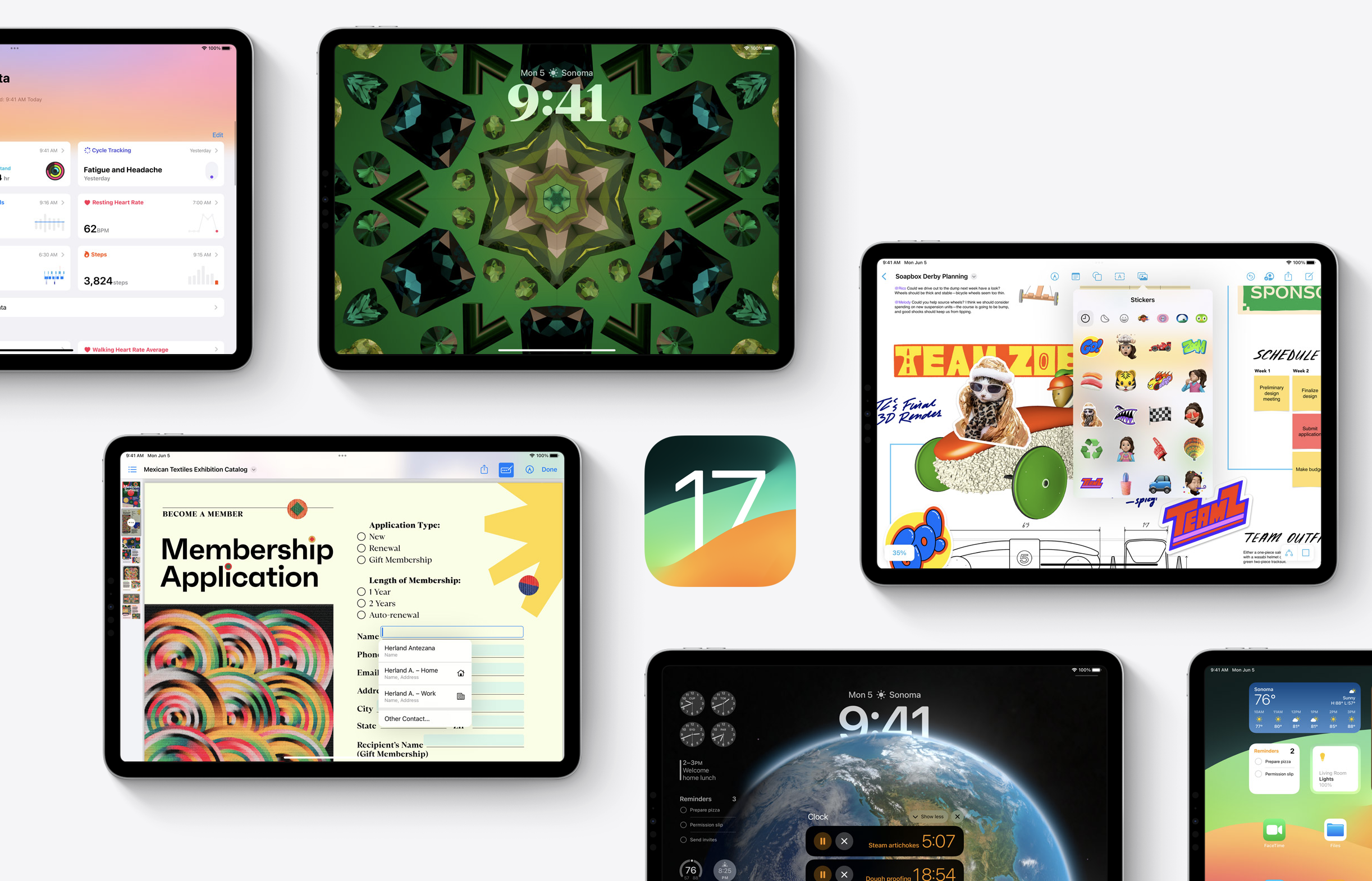
One of the most significant changes in iPadOS 17 is the improved PDF handling. In iPadOS 17, PDFs in the Notes app will appear full width, making it easy to flip through pages, add annotations, or sketch directly in the document using an Apple Pencil. This feature is especially useful for those who frequently work with PDF files on their iPads.

Another new feature in iPadOS 17 is machine learning for PDF fields. This feature allows users to quickly enter information such as names, addresses, and emails from their Contacts into fields in a PDF. This can save time and make working with PDF files more efficient.
Finally, the Notes app will gain the ability to organize PDFs into folders with keywords and tags This feature will allow users to easily find and access their PDF files within the Notes app.
Overall, these new features in iPadOS 17 are designed to make working with PDF files on your iPad easier and more efficient.
iPadOS 17 is expected to be released to the public in the fall of 2023 and includes a plethora of other new features such as:
Lock Screen widgets
Interactive widgets on the Home screen
Free form placement of Windows in Stage Manager
an improved Messages app
Improved Autocorrect
Image copyright Apple.com
How To Chat With Your PDF

In the age of digitalization, PDFs have become a ubiquitous format for sharing and distributing information. They provide a convenient way to store and present documents, but what if we could go beyond their static nature? Imagine interacting with your PDFs, asking questions, extracting data, and receiving real-time responses.
In this blog post, we will explore the concept of "chatting with your PDF" and how it can revolutionize your document management experience.
Understanding Chatbots and Natural Language Processing: Before we dive into the specifics of interacting with PDFs, it's essential to grasp the basics of chatbots and natural language processing (NLP). Chatbots are computer programs designed to simulate human conversation. NLP enables machines to understand and interpret human language, enabling effective communication between users and systems.
Leveraging OCR Technology: Optical Character Recognition (OCR) plays a vital role in enabling conversations with PDFs. OCR technology converts scanned or image-based text into machine-readable text. By applying OCR to a PDF, you can extract the content and make it available for chatbot interactions. This step is only required if your PDF files are images based (e.g., scanned documents)
Choosing the Right PDF Chatbot Platform: To chat with your PDF, you need a reliable and fast platform that supports PDF integration. All-About-PDF allows you to upload your PDF document contents to ChatGPT AI for fast and accurate processing.
Chat with Your PDF: Once processing is completed, you can start interacting with it. Here are some examples of how you can chat with your PDF:
Ask Questions: Pose natural language questions about the content of the PDF, such as "What are the key points in this document?" or "Can you explain the process mentioned in section X?"
Extract Information: Request specific information from the PDF, such as "Please provide the contact details mentioned in the invoice" or "What are the financial figures for Q3?"
Navigate Sections: Inquire about specific sections or pages within the PDF, such as "Take me to the conclusion of the report" or "Jump to page 15."
Search Keywords: Direct the chatbot to search for particular keywords or phrases within the PDF, like "Find occurrences of 'chatbot' in this document" or "Highlight instances of 'key performance indicators.'"
Chatting with your PDF documents offers several advantages
Time Efficiency: By conversing with your PDF, you can quickly retrieve information instead of manually searching through pages.
Accessibility: People with visual impairments or difficulties navigating traditional PDF interfaces can benefit from the conversational approach.
Productivity: Extracting relevant data from PDFs becomes easier, enabling faster decision-making and information retrieval.
Chatting with your PDF opens up new possibilities for interacting with and extracting value from these widely used document formats. By leveraging chatbots, NLP, and OCR technologies, you can engage in real-time conversations, ask questions, and retrieve information with ease.
Incorporating this innovative approach to document management will enhance productivity, efficiency, and accessibility in various fields. Embrace the future of PDF interaction and streamline your document workflows with conversational capabilities by downloading All-About-PDF today.
What’s the deal with OpenAI’s ChatGPT?
I am sure you have seen or heard mention of OpenAI's ground-breaking artificial intelligence chatbot, ChatGPT. So what's really the big deal, and why is everyone talking about it?
ChatGPT is a powerful language model developed by OpenAI that utilizes deep learning techniques to generate human-like text. The model is based on the GPT (Generative Pre-trained Transformer) architecture and is trained on a massive dataset of conversational text, allowing it to generate responses that are similar to those of a human.
One of the key features of ChatGPT is its ability to understand context. The model is able to take into account the previous conversation and generate responses that are relevant to the current conversation. This is achieved through the use of a technique called "contextual embeddings," which allows the model to take into account the words and phrases that come before and after a given word or phrase.
Another important feature of ChatGPT is its ability to generate a wide variety of text. The model can generate responses that are appropriate for different contexts, such as formal and informal conversations, and it can also generate text in different styles, such as poetry and prose. This is made possible by the model's ability to understand the underlying structure of the text it is generating.

One of the most exciting applications of ChatGPT is in the field of natural language processing (NLP). The model can be used to generate text for chatbots, virtual assistants, and other NLP applications. This allows for more natural and human-like interactions between machines and humans, which can improve the overall user experience.
In addition to these applications, ChatGPT can also be used for a wide range of other tasks, such as text summarization, content generation, and language translation. This is due to the model's ability to understand the underlying structure of the text it is processing.
Overall, ChatGPT is a powerful and versatile language model that has the potential to revolutionize the field of NLP and improve human-machine interactions. With its ability to understand context and generate a wide variety of text, it is sure to be a valuable tool for developers and researchers in the years to come.
How can ChatGPT assist with PDF files?
ChatGPT can be used in conjunction with PDF documents in a few different ways. One potential use case is for document summarization. ChatGPT can be trained on a dataset of PDF documents and be used to generate a summary of the main points in a given document. This can save time for users who need to quickly understand the key takeaways from a document without reading through the entire thing.
Another use case is for document search. ChatGPT can be trained on a dataset of PDF documents and be used to search for specific information within the documents. This can be done by inputting a query in natural language and then the model can return relevant passages or documents that contains the information.
Additionally, ChatGPT can also be used to generate meta-data such as title, keywords, and abstract for a given pdf document. This can be useful for indexing and cataloging large numbers of documents.
Lastly, ChatGPT can be used in conjunction with PDF documents to generate new text. For example, the model can be used to generate a new document that is based on the information in an existing PDF document. This can be useful for creating new content or for automating the writing process.
In all these cases, it is important to have a high-quality dataset of pdf documents to fine-tune the model to specific domain and purpose.
Still not convinced about ChatGPT's utility? What if I told you that, except for this sentence, ChatGPT wrote this entire blog post?
Useful Productivity Services For Founders
If you have ever founded a business, you already know that you have to wear a multitude of hats every single day. You also likely need more than 24 hours a day to get stuff done and live a balanced life.

Here are five tools that will help save time as well as allow you to retain some of your sanity 😜
Zapier: I don't know what I would do without this service. Zapier allows you to create automation "zaps" that events in your business can trigger. For example, when a new order comes in, you can automatically reply with a license code and create the user's account in your CRM. https://zapier.com
Squarespace: When we launched All-About-PDF, we knew we didn't have the resources to build a website from scratch. Instead, we used Squarespace to create a professional website with all our requirements, such as security, e-commerce, and a blog. https://squarespace.com
Stripe: What's a business if you can't accept online payments? We needed a payment platform that would handle all our payment processing, conduct all the security checks, have low fees, and pay us frequently. Stripe checked all those boxes for us and more. https://stripe.com
Postman: Postman is an API (Application Programming Interface) platform for building and testing APIs. It allows us to extensively test the All-About-PDF API that is not only used by our apps but also by third parties. The application and service simplify each step of the API lifecycle and streamline collaboration so that we can create better APIs—faster. https://www.postman.com
Grammarly: as a founder, I knew my business would be dead on arrival if we didn't create content for our blog. As an engineer, I knew blogging was not my strength. I was therefore faced with two choices; hire a content writer or get better at writing. The former was not attenable to our small startup, so I opted for the latter and enlisted the help of Grammarly. Not only does the service check and correct spelling and grammar mistakes, but it also offers helpful ways to improve the readability of your articles. https://www.grammarly.com
Buffer: Speaking of content creation, once you have that blog post written, you need to post it to all the socials at optimal times of the day. These times vary for each social media network, so how do you know when to post? That's where Buffer comes in; it allows you to connect your social media account, add your posts, and handle the rest. You can queue up blog posts well in advance and focus on other things in your business. https://buffer.com
MailChimp: for any business, user feedback is critical for growth. MailChimp allows us to email surveys to our customers to evaluate us on how we can improve our products and services. https://mailchimp.com
What other productivity services do you use to save time in your business? Leave us a comment below.
How To Convert MS Word To PDF (Without Third-Party Tools)

Microsoft Word is one of, if not the most popular, document processors in the world. The PDF format is undoubtedly the most popular and portable in the world. It makes sense then that a typical office task is to convert Word files to PDF for distribution and archiving.
How To Convert Word To PDF
Many online and offline tools exist to convert your Word to PDF documents. Some are free, some are ad-supported, and others require payment.
What many people need to realize is that most of the time, you don't need any extra tools to go from Word to PDF.
Let's look at some ways to convert Word to PDF without any third-party tools:

You can save a Word document to PDF in Microsoft Word
Using Microsoft Word: when using a modern version of Microsoft Word (Windows, macOS, iOS, and Android), you can easily save your Word document as a PDF file right from the File -> Save As menu.
Using the PDF Printer: newer versions of macOS and Windows all come with the ability to print any file to a PDF. You can therefore print your Word document directly to a PDF file without any other software.
Using the Operating System: if you are using macOS, iOS, or iPadOS, then you should be aware that PDF is at the core of these operating systems, and therefore any file, including Word documents, can be exported to PDF without any other application.
This article will save you from downloading extra tools, or worse, uploading your Word documents to third-party services, for the simple task of converting your Word files to PDF. Share this post with your friends, family, and colleagues.
How To Share PDFe Files Via Email in All-About-PDF
When you protect a document with our best-in-class Digital Rights Management (DRM) technology for PDF documents, a task that usually follows is to share it with others via email. We decided to streamline this process by enabling you to protect PDF files and email them in a straightforward process from within All-About-PDF. Here is how to do it:
Get started with All-About-PDF today by downloading our free unlimited 14 day trial.
How To Restrict PDF Documents By Email Address(es)
If you would like to prevent unauthorized users from reading your sensitive documents, one way of achieving that is by specifying the email addresses of the people allowed to access your PDF documents.
To restrict access to a PDF to specific email addresses, follow the steps below:
Open All-About-PDF from the Windows Start menu
Click on the “Apply DRM” button from the Home screen.
The DRM Protection screen will open.
Select the PDF file or folder containing the files you would like to protect. You can also use wild cards to process multiple PDF files.
Expand the “Allow Access By selected Email Addresses” section and check the box to "Lock PDF to the following Email Addresses."
Use the + button to add a list of allowed email addresses.
Configure any other DRM options, such as expiry date or device locking. When Email Address Locking is used together with Device Locking, it is configured as devices per email addresses i.e. each specified email address can open the document on the configured numbers of allowed devices.
Click the “Apply DRM” button to protect the document
You can now share the resulting PDFe files without worrying about prying eyes.
Opinion: Another Example of Why You Should Protect Your Sensitive Files with DRM

This week, we learned that a draft document repealing the precedent set by Roe v. Wade, penned by Supreme Court Justice Alito, was leaked to the press.
Regardless of where your politics lie or what you think about abortion, I think we can all agree that the leaking of a draft opinion from the nation's highest court should never happen.
There were obviously massive security failures for this leak to occur, and this is why we feel that the only real way to protect sensitive PDF files is by using PDF DRM technology.
Let's see how this could have played out had Justice Alito protected his draft with All-About-PDF's DRM technology before sharing it.
First, whoever leaked the document would not have been able to print the file or take a screengrab of it. Second, the Judge could have added an expiration date to limit the document's lifespan to just a few hours. Finally, he could have limited access to the draft by specifying the email addresses of every person who was allowed to view it. In doing so, he could easily track down who leaked the document.
How many times are sensitive documents going to get leaked into the wrong hands before we learn that the PDF format on its own is not secure enough?
Don't be the next victim of having your sensitive information leaked without your consent; get All-About-PDF today!
Introducing All-About-Docs
We built All-About-PDF to provide a one-stop solution for your PDF processing needs. Thanks to your feedback, what started as a simple app with just six functions, has now grown to include features such as powerful batch Find/Replace function, Text Redaction, PDF Expiry, Watch Folders, Cloud Sync, and more.
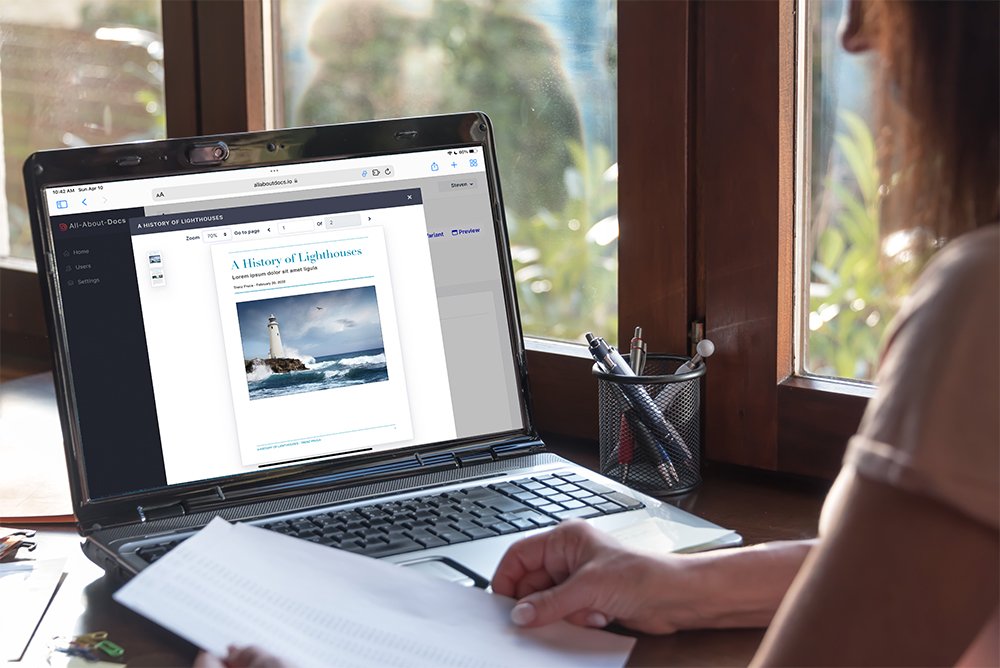
One of the most impactful features we added to All-About-PDF was the ability to protect PDF documents with our proprietary DRM technology. This DRM technology, the PDFe format, allows you to control who, when, and from where a user can access your document. We have continued to expand our DRM features and recently added the popular All-About-PDF Cloud Sync that enables you to modify DRM parameters even after sharing your files.
As we collected feedback over the last year, it became evident that one missing piece from our offering was a central location from which users could manage and share documents securely.
We are glad to inform you that we have launched a brand-new service, All-About-Docs (https://allaboutdocs.io), that allows you to do just that and more!

Document sharing with All-About-Docs revolves around the clever concept of Variants; a Variant is a unique link to a document that has security parameters such as email and password restrictions, expiry dates, and geolocation restrictions. Once you have shared a Variant, updating everyone with the latest file is as simple as uploading the newest version to the service. In addition to that, you can also view a graphical timeline showing you detailed document access analytics.
With All-About-Docs, you can say goodbye to sharing your treasured documents as email attachments because, as you know, once you hit Send on that email, you are no longer in control of what happens to it.
Creating an All-About-Docs account is free and does not require a credit card. As an All-About-PDF user, we are offering you a free upgrade to Premium Edition when you subscribe to the Standard Edition of All-About-Docs.
Head on over to https://allaboutdocs.io to get started.
Introducing All-About-PDF Cloud Sync
This week saw the release of All-About-PDF Build 2004, and one of the significant features of this release is the long-awaited All-About-PDF Cloud Sync.
What is All-About-PDF Cloud Sync?

Put simply, All-About-PDF Cloud Sync is our platform that allows you to modify the DRM settings of your PDFe documents even after the file has been shared/distributed.
Let's look at an example; say you have a PDFe file with a specific expiry date and, has a list of emails that are permitted to view the file's contents. The file is then distributed to your clients.
With All-About-PDF Cloud Sync, you can modify the document's DRM settings such as, expiry date or list of allowed emails by simply editing the original PDFe file. All-About-PDF will synchronize all your local changes to our cloud and automatically apply them to all the distributed copies of the document.
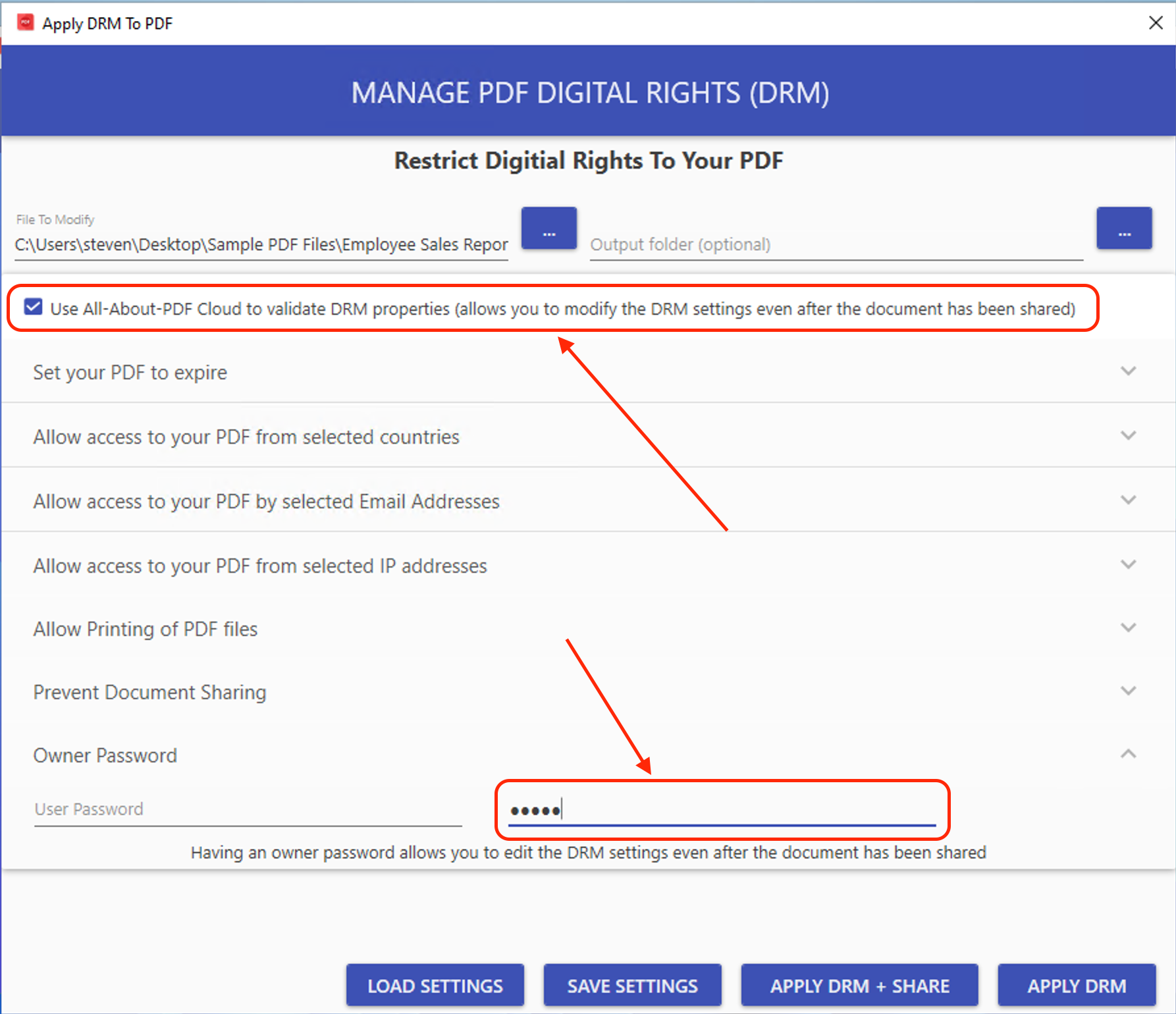
An owner password and cloud sync allow you to edit PDFe files even after they have been shared
To get started with All-About-PDF Cloud Sync, follow the steps below:
If you haven't already, download and install the latest version of All-About-PDF from here
Open All-About-PDF and then click on the Apply DRM button.
As usual, select the PDF that you would like to protect.
You can specify the Output folder if you want to save the PDFe file to a different location from the original file.
Check the box to "Use All-About-PDF Cloud to validate DRM properties."
The app will prompt you to provide an Owner password if your goal is to edit the PDFe file later.
Provide a secure Owner password.
You may now edit the rest of the DRM settings such as Expiry Date, Allowed Emails, Sharing Controls, etc.
Click on the Apply DRM button to generate the secure PDFe file.
With the PDFe file generated, you can now distribute it to your clients and users with the peace of mind that not only is your intellectual property protected, you can also modify access to the file at any given moment.
Let's see how this works.

To edit the PDFe file, filter Windows file picker to show PDFe files
First, open All-About-PDF and click on Apply DRM button.
Click the File Browser button to select your existing PDFe file. Be sure to change the filter from PDF to PDFe, as shown below.
All-About-PDF will prompt you for your Owner password; no one can edit your PDFe file without it.
You can now edit the DRM settings as usual and click the Apply DRM button to save the changes. The DRM settings on your local computer are immediately uploaded to the All-About-PDF Cloud and synchronized with all the distributed versions of the document.
All-About-PDF Cloud Sync feature is compelling as it allows you to remotely extend or shorten a document's expiry date, modify the list of permitted email addresses to access the document, or even revoke all access to the document.
Download All-About-PDF today to see how All-About-PDF Cloud Sync can benefit you and your organization.
Convenience vs Security
When it comes to life in general, convenience and security are almost always on the opposite ends of the same spectrum.
For example, if you wanted your home to be highly secure, you could add a third or fourth lock to all the doors; this would undoubtedly increase security, but it would be very inconvenient to enter the house.
The same quandary presents itself when we are dealing with technology systems. A short and easy password, such as "1234", is convenient; however, it is also very easy to guess. We are therefore advised to use long and complex passwords as well as multi-factor authentication. We trade convenience for security because, in this case, it is worth it.
When it comes to securing intellectual property in our PDF documents, two options come to mind.

More convenience, less security.
The first option is to protect the document using PDF permissions and an Owner password. With these permissions, you can limit the PDF file from being printed, edited, having contents copied, and a few other options. You can also add PDF expiry by adding PDF JavaScript into the mix.
As you would expect, it is very convenient to view PDF files that have been protected with this method because any PDF viewer can open them. The downside to PDF permissions is that it is wholly dependent on the PDF reader whether it will obey the permissions or not. If a user were to use a non-compliant reader, it would automatically bypass all the security you have placed on the document. Users can also take screencaps of the PDF reader to capture the document’s contents.

Adobe Acrobat's warning regarding permissions and third-party products
More security, less convenience.
The second option for securing PDF documents is to use Digital Right Management (DRM) technology such as All-About-PDF's PDFe files. In this scenario, the document is wrapped in an encrypted security layer that can hold a virtually unlimited number of permissions and can introduce features such as expiry dates, printing limitations, sharing limitations, screen capture blocking, and so much more. To guarantee the security of the intellectual property, DRM-protected PDF files can however only be viewed using proprietary readers.
As a user, it is then up to you to examine what you are trying to protect, its value and determine which side of the spectrum you will be on. Are you going to lean towards providing more convenience to your users while sacrificing the security of your intellectual property? Or are you going to introduce some inconvenience to consuming your content while ensuring that it is secure and protected?
Best of Both Worlds?
Fortunately, we at All-About-PDF like a good challenge and have been wrestling with this very issue. We have come up with a few options to reduce the inconvenience caused by using proprietary DRM technology without sacrificing any of the security benefits. These include:
Our PDFe Reader (used to read DRM protected PDF files) is free for everyone to download
Our PDFe Reader is available on all major platforms, including Windows, macOS, iOS, iPad, Android, and the Web.
With the ability to "DRM and Share" in our apps, you can protect your PDF file with our leading-edge DRM technology and share the resulting URL that the user can open in any web browser on any device.
With All-About-PDF’s DRM protection, we are continuously striving to strike a balance between excellent security for your intellectual property and convenience for your end users. Get started today by downloading our free 14-day trial.
How To Edit PDF Properties
When you view a PDF document, you can get information about it, such as the Author, Title, Date Created, Subject, and Keywords. Some of these properties are set by the person that created the document, and the PDF application generates others.
You can view these properties in applications such as Adobe Acrobat by selecting Properties from the File menu.
You will likely notice that when you view these properties in most applications, they are all read-only and therefore cannot be modified.
So how do you modify some or all of these PDF properties? Even more important is how do you change these properties for multiple PDF documents? With All-About-PDF, it couldn’t be simpler!

Editing PDF properties is a simple task with All-About-PDF
Say, for example, we have 100 PDF documents that we would like to change the document's Author, Date Created, and Producer properties.
First, make sure that you have downloaded and installed the latest version of All-About-PDF.
Open the application from the Windows Start menu and click on the Attributes button.
From the Attributes window, select the PDF file that you would like to edit. We want to process multiple documents; therefore, we will change the file name to use a wildcard notation (e.g. *.pdf).
You can specify the Output folder where the processed documents will be saved.
Select the Author, Producer, and Date Created checkboxes and enter the values we want to set them to.
Hit the Go button to begin processing the PDF documents
In a few seconds, All-About-PDF will update the selected PDF document properties to your specified values.
Have you ever needed to update the properties of your PDF documents? Download All-About-PDF today and give this a try!
Easily Share PDFe Files in Dropbox (Or Other Cloud Services)
Dropbox (https://dropbox.com) is a top-rated cloud service for storing files, and millions of people use it every day to share files with their colleagues and friends.
Sharing PDFe documents stored in your Dropbox account is very easy and can be achieved in just a few steps. In the end you will be creating and sharing a link in the following format:
https://app.allaboutpdf.com/reader/?pdfefile={dropbox file link}
The first thing you want to do is obtain a share link to the PDFe file in Dropbox. As they say, an image is worth a million words, so have a look at the images below on how to do this on the Dropbox website or your computer.

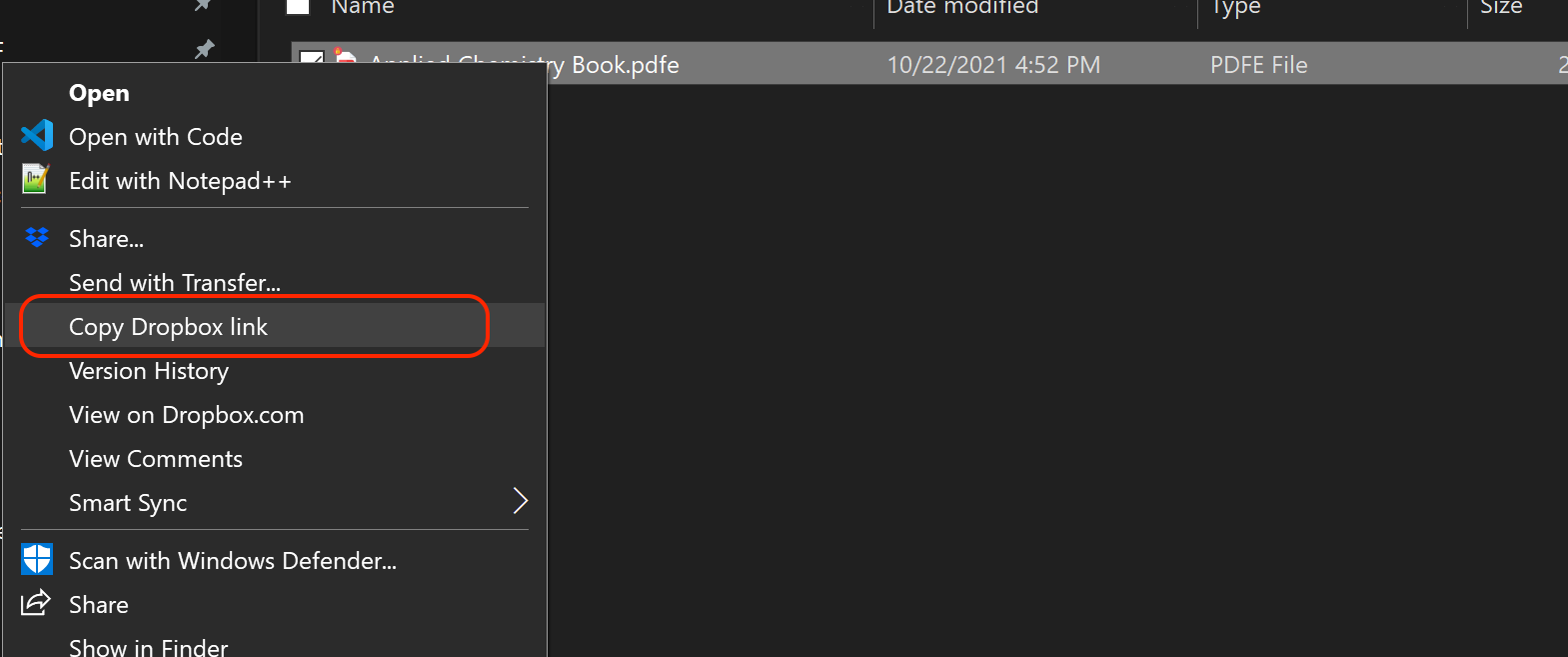
Once you have the link copied, you should edit it to make the file downloadable. You do this by changing the "0" at the end of the URL to a "1". For example, if your link looks like this:
https://www.dropbox.com/s/wo19wmwvooj40xv1/Applied%20Chemistry%20Book.pdfe?dl=0
Change it to be:
https://www.dropbox.com/s/wo19wmwvooj40xv1/Applied%20Chemistry%20Book.pdfe?dl=1
Once you have changed the link, all you have to do is append it to the PDFe Reader link as follows:
https://app.allaboutpdf.com/reader/?pdfefile=https://www.dropbox.com/s/wo9wmwvooj40xv1/Applied%20Chemistry%20Book.pdfe?dl=1
That's all there is to it. Your end-users can view the shared PDFe file by opening the link in their favorite browser.

A shared Dropbox file being viewed in the All-About-PDF PDFe Reader
Get started protecting your PDF files with All-About-PDF today by downloading the FREE unlimited trial below.
How To Quickly Share DRM Protected PDF Files
As more and more people continue to utilize the power of our DRM platform to protect the intellectual property in their PDF documents, it is important to us to make the experience of sharing PDFe files as easy and seamless as possible.
We are very proud to announce the immediate availability of the new Apply DRM + Share feature in All-About-PDF, and here is how it works.
Imagine you have a document that you would like to protect and share with your team, and you would also like it to expire in 7 days. Instead of following the usual practice of applying DRM to the file and then emailing the protected file, you can now get a URL to share.
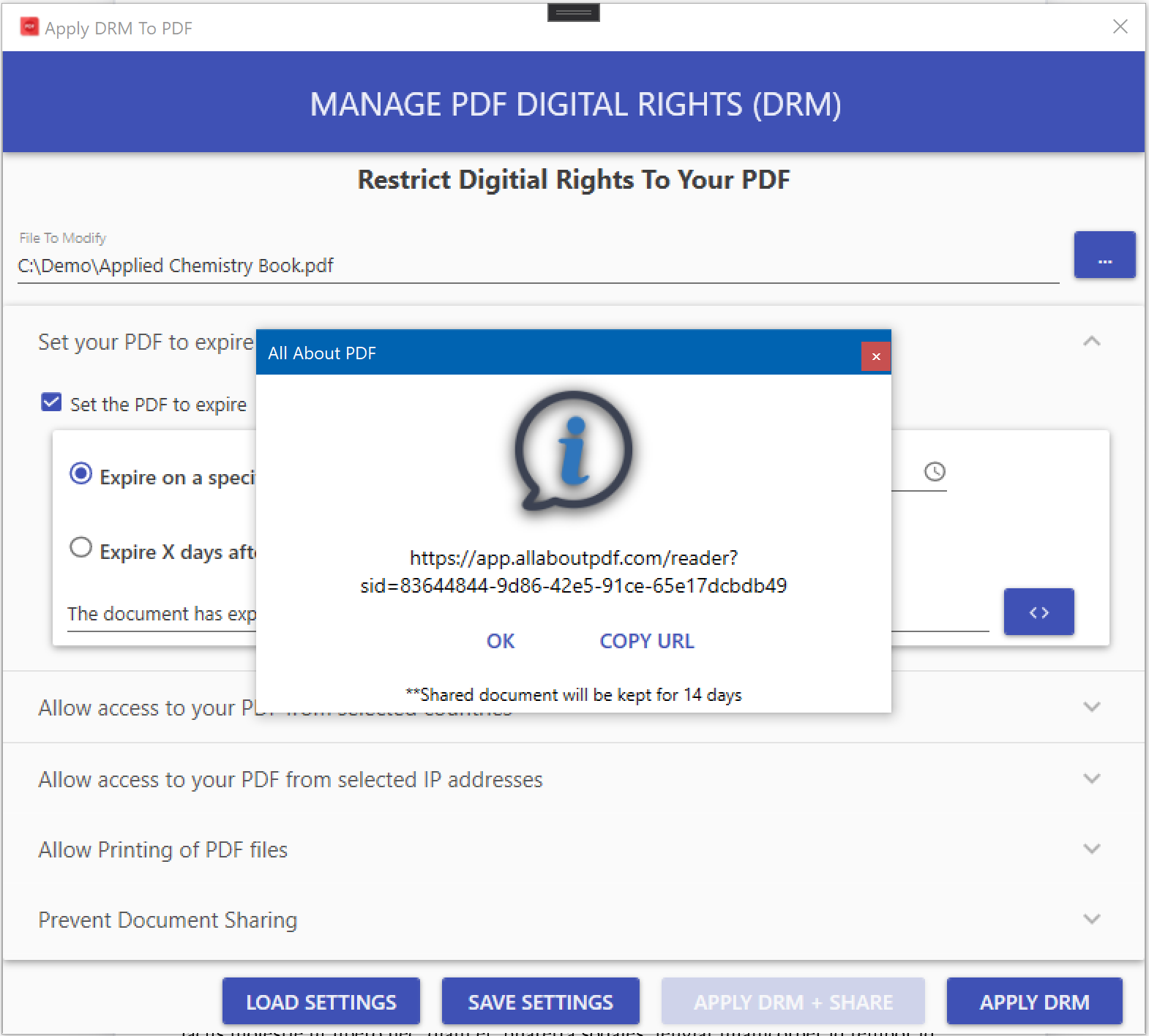
First, download the latest version of All-About-PDF and run it. Next, select the file you would like to protect and then configure all the DRM settings as you would normally. Once you are happy with all the settings, instead of clicking the Apply DRM button, click the Apply DRM + Share button. All-About-PDf will present you with a unique web address that can be used to access the document.

Shared PDFe files can be viewed in any modern web browser.
Please note that your document is uploaded to our secure servers and will be deleted after 14 days.
To simplify your PDF protection and sharing, download All-About-PDF today!
How to Prevent Unauthorized Sharing Of Your PDF Content
One of the biggest problems creators face when monetizing their PDF content is preventing end-users from unauthorized sharing of the files.
Solutions such as having an expiration date or setting PDF permissions are not always applicable.

This post will explore how All-About-PDF's DRM can help protect your PDF content and give you the peace of mind that end-users cannot share the PDF without your authorization.
If you haven't already, make sure you have downloaded and installed the latest version of All-About-PDF.
Open All-About-PDF from the Windows Start Menu
From the main window, click on the Apply DRM button.
Select the PDF file you would like to protect. To protect multiple files, you can use wild cards.
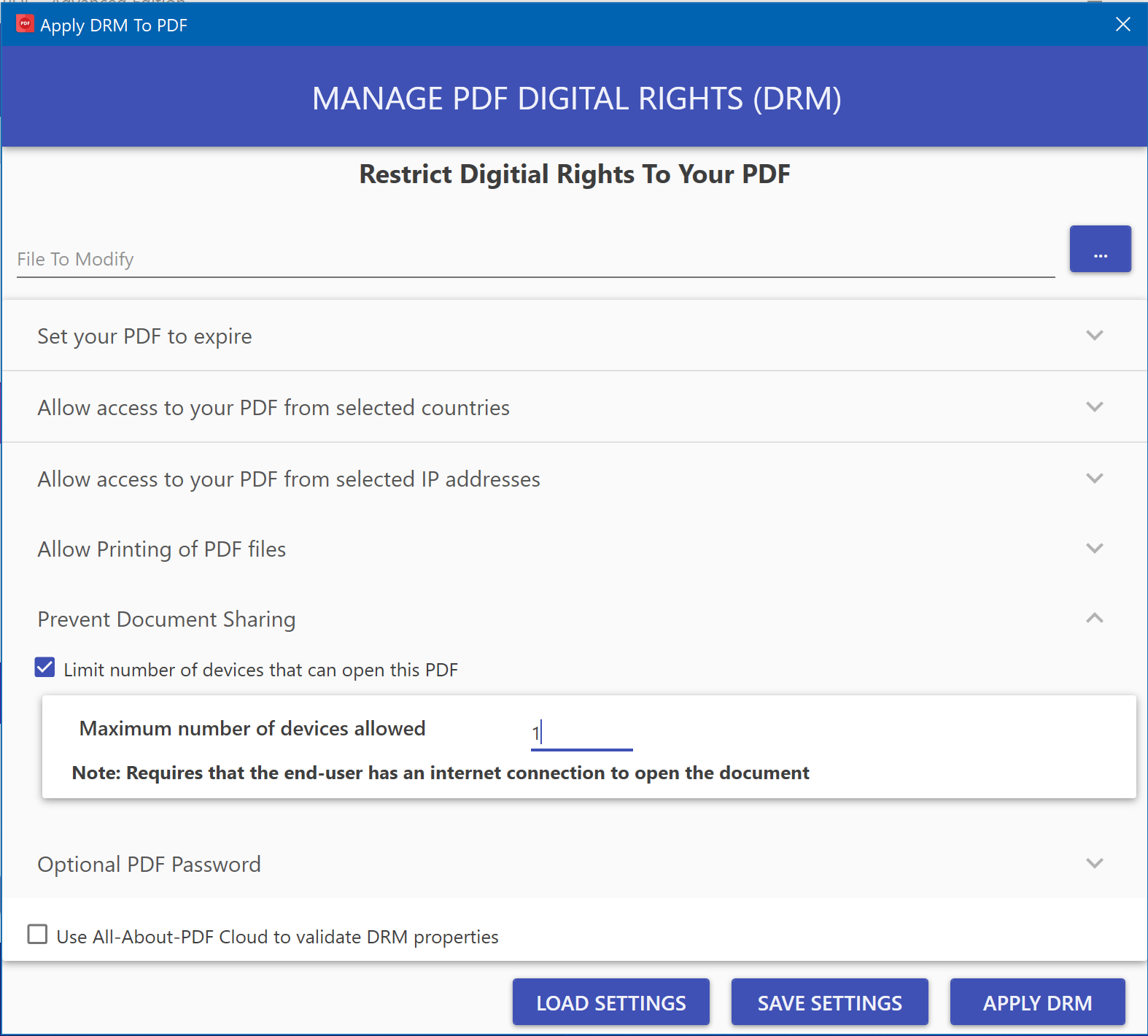
Click on the Prevent Document Sharing segment to expand it and specify the maximum number of devices that can open the document.
You can optionally add other protection mechanisms such as document expiration and region locks.
Click on the Appy DRM button to protect the document.
When the end-user opens the protected document for the first time, they will be alerted that the PDF will be registered to their device and that no other device will be able to open it. The end-user can also unregister a device from the protected PDF by clicking the De-Authorize button in PDFe Reader.
Please note that this feature requires that the end-user have an active internet connection to open the protected PDF file.
To start preventing unauthorized sharing of your PDF files, download All-About-PDF today.
Limit How Many Times a PDF File Can Be Printed
When you protect a PDF document with our DRM technology, printing is also disabled by default. There are, however, some instances when you would like to allow the document end-user to print some copies of the file.
Follow the steps below to achieve this using All-About-PDF's (digital rights management) DRM technology.
If you haven't already, make sure you are using the latest version of All-About-PDF from our website as well as the latest PDFe Reader (at least build 1072).
Open All-About-PDF from the Windows Start menu and then hit the "Apply DRM" button.
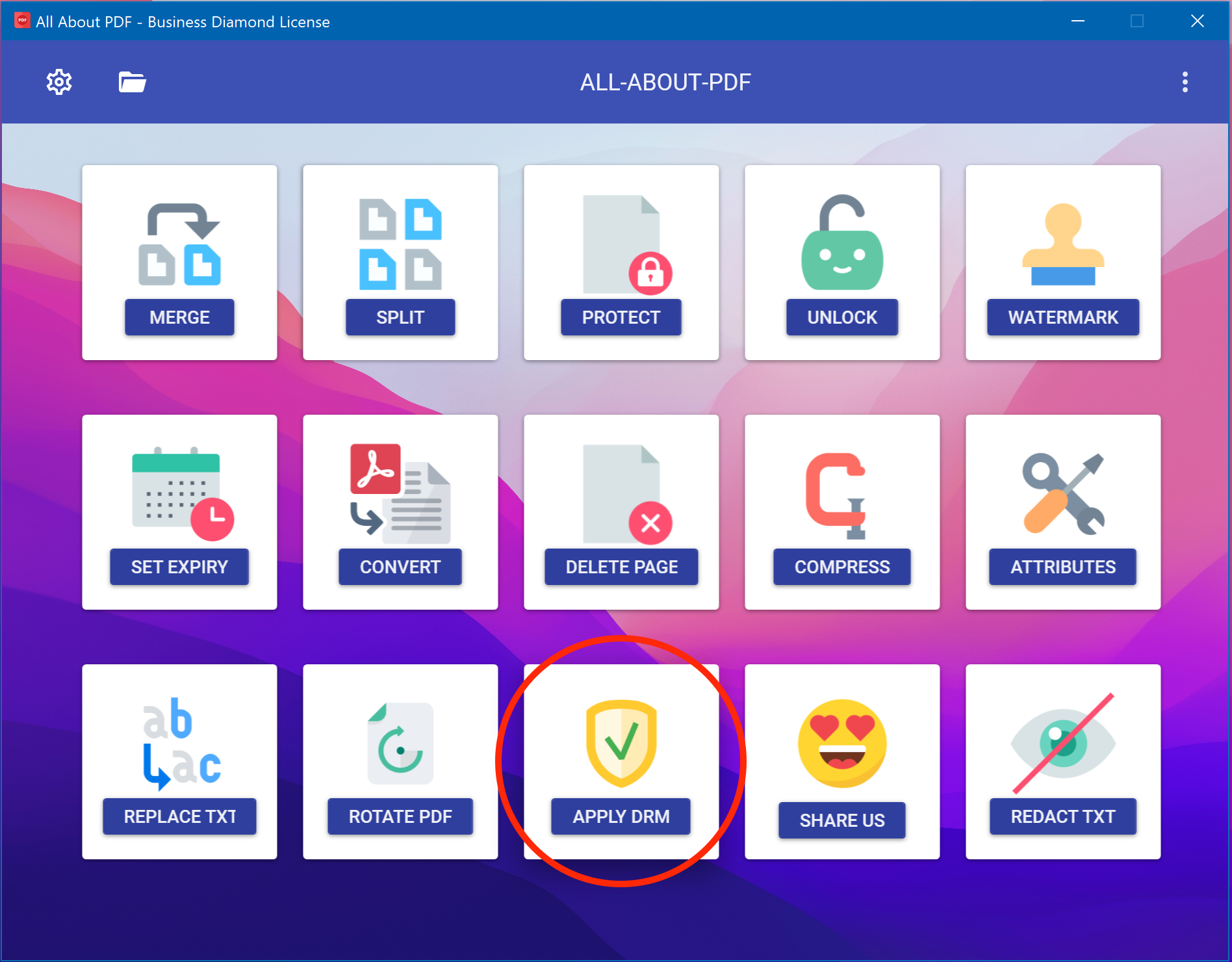
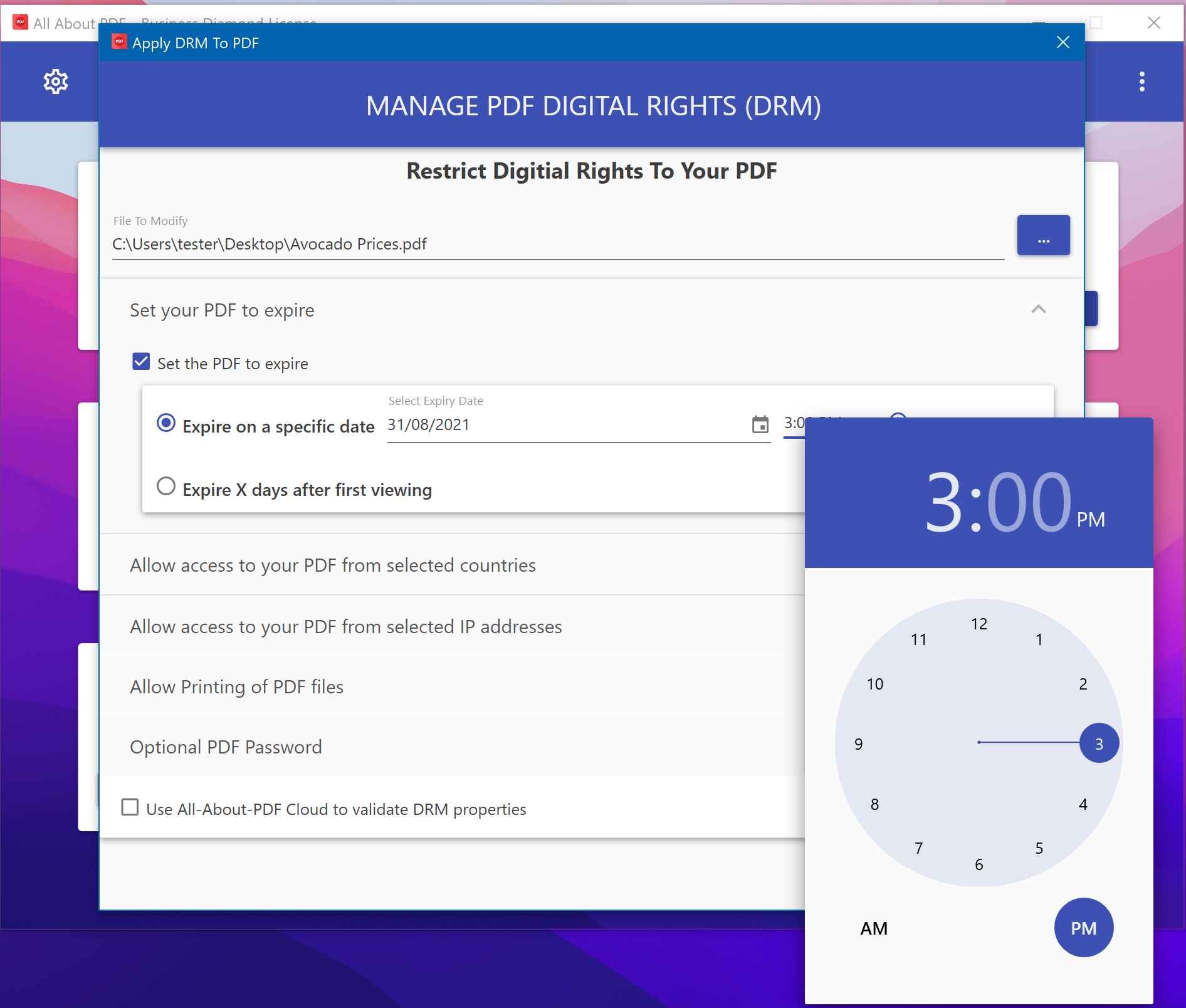
On the screen that opens, select the PDF document that you would like to protect with DRM and then, If desired, set the document's expiry date by expanding the "Set your PDF to expire" section.
Under the "Allow Printing of PDF files" section, you can check the "Allow printing of protected file" checkbox and then specify how many times your end-user is allowed to print the file.
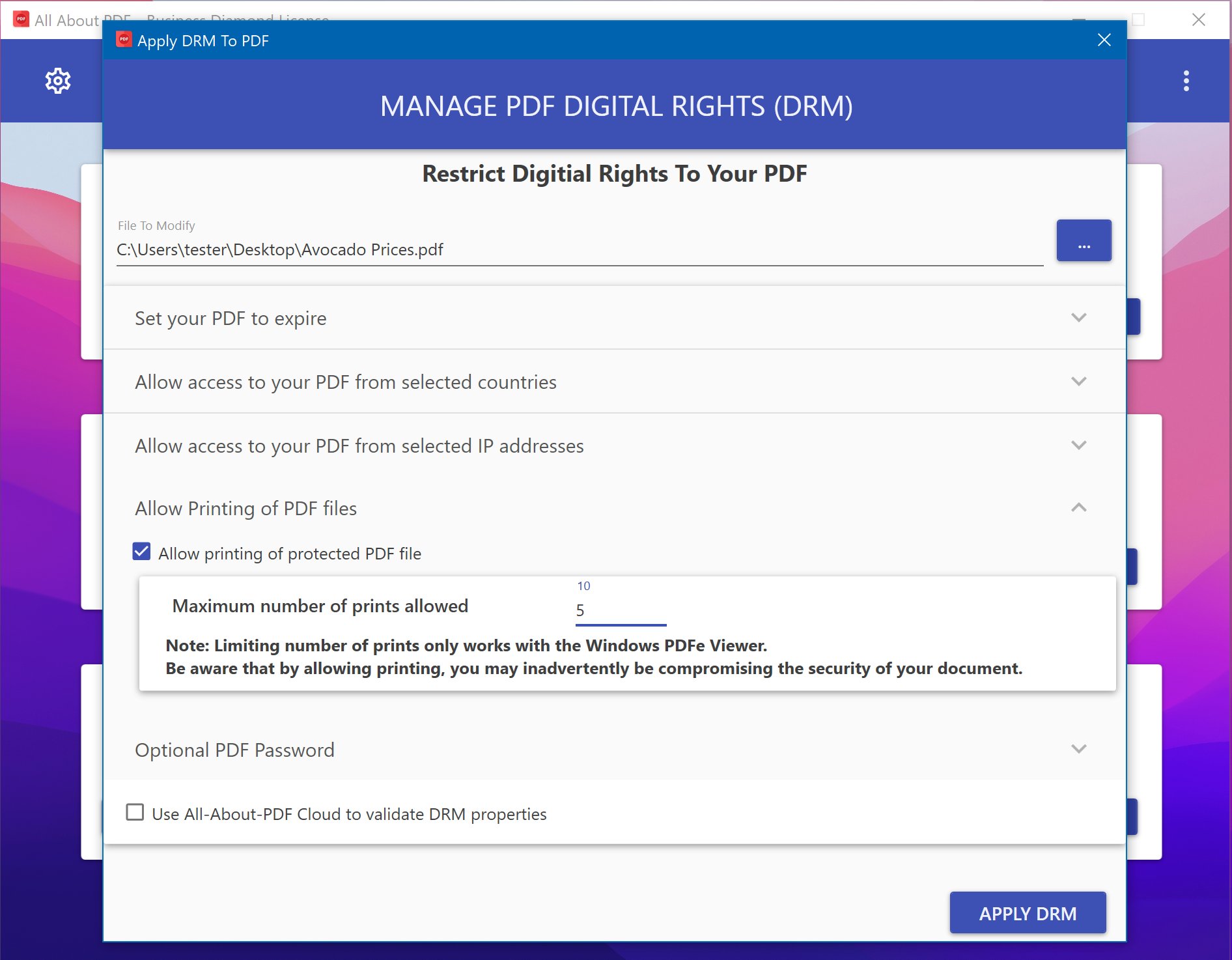
Hit the "Apply DRM" button to protect your file; the resulting DRM protected file is saved in the same location as the PDF file with a ".pdfe" extension.
All-About-PDF’s DRM technology automatically prevents the documents from being printed to PDF and document printers as well as prevents screen capture of the document.